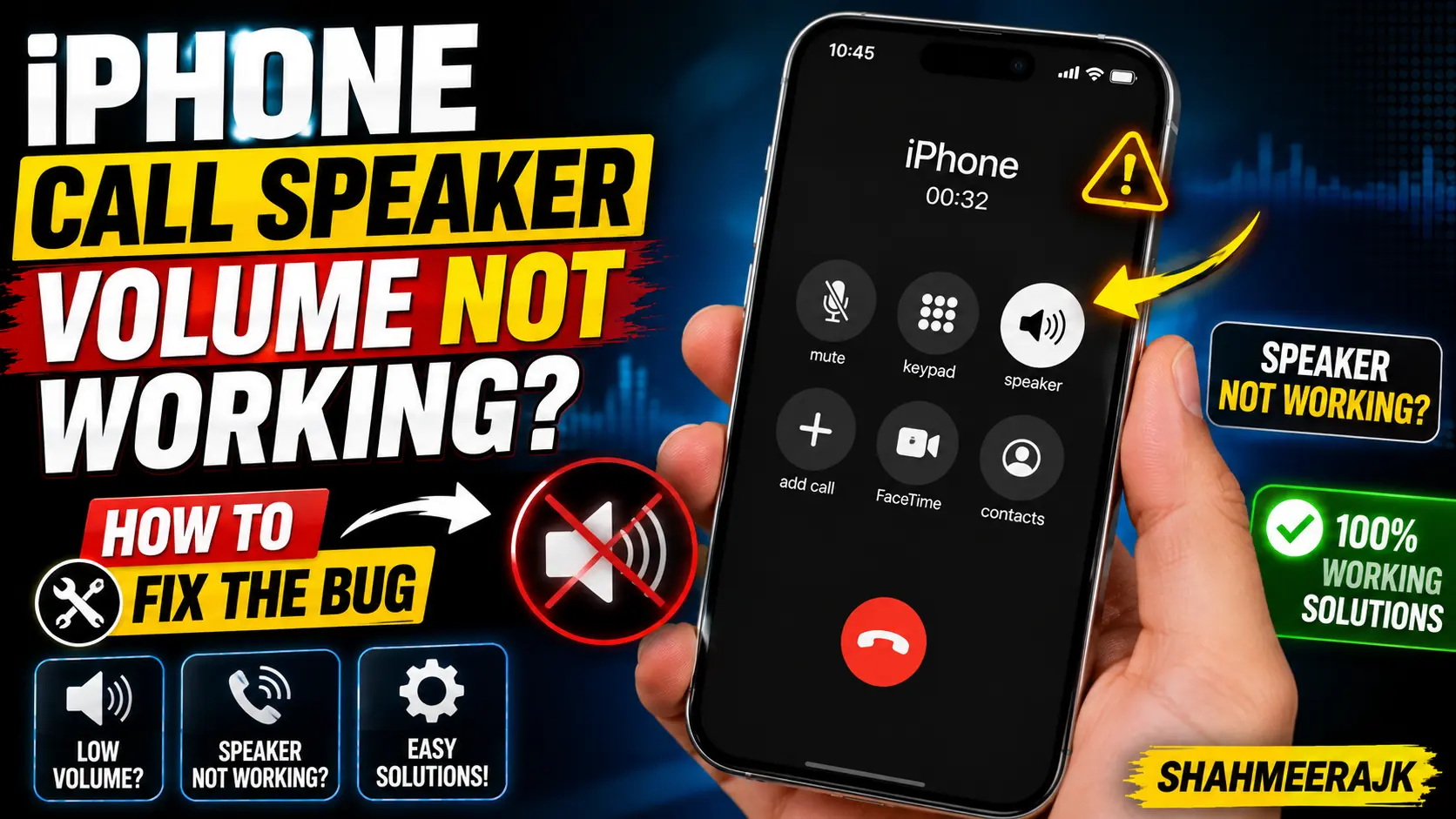
I can’t tell you how many times a panicked client has walked into my repair shop holding an iPhone 15 Pro, claiming they’ve suddenly gone deaf in one ear. Or rather, that their phone has. They’re standing on a chaotic street corner in London or a noisy subway platform in New York, desperately pressing their phone against their skull, shouting, “I can’t hear you!”
It’s an incredibly isolating feeling. You check the volume keys on the side. They’re maxed out. You toggle the mute switch. Nothing. Yet, the moment you tap the speakerphone button, the call blasts out at full volume. What gives?
Why is my iphone call volume so low all of a sudden? Is it a blown receiver speaker, or has yet another iOS update caused your audio behaviour to go haywire? Let’s break down exactly what’s going on, how to diagnose it at home without spending a penny, and the steps to resolve this incredibly annoying bug.
Diagnostics: Hardware Failure vs. iOS Software Bug
Before you start booking appointments on the Apple Support app, we need to isolate the root cause. We must figure out if your physical hardware has died, or if iOS is just having a digital tantrum. Over years of doing this, I’ve found that about 60% of these cases are actually software-related, especially after major releases like the iOS 17 call volume bug fix cycle.
Here is the quick, definitive diagnostic test I run on every device that comes across my workbench:
The Voice Memos Test
This is the cleanest way to bypass your cellular carrier and any weird call-routing bugs.
- Open the built-in Voice Memos app.
- Record a quick 5-second clip of you speaking.
- Tap the speaker icon in the top right corner of the Voice Memos app so it turns grey (this forces the audio to play through the top receiver speaker, not the bottom speakerphone).
- Press play and hold the phone to your ear.
If you can hear your recording crystal clear, congratulations! Your hardware is perfectly fine. The issue is entirely software-driven. However, if you can barely hear person on iphone unless on speaker, and this Voice Memo is also dead silent, we are likely looking at either a physical blockage in the ear speaker grille or a dead speaker transducer.
Cellular Calls vs. VoIP Apps
Next, test a standard cellular phone call, then immediately try a FaceTime audio call or a WhatsApp call. Standard cellular calls are processed differently by your baseboard modem. If your iphone receiver speaker not working after update only during normal mobile carrier calls, but FaceTime sounds incredibly loud, your carrier settings or a network configuration bug is the culprit.
Step-by-Step Software Fixes for the Call Volume Bug
If your voice memo test proved the hardware works, let’s dive into the digital gremlins. iOS updates, particularly around the time of iOS 17.2 and early iOS 18 beta releases, introduced weird audio attenuation bugs where the system incorrectly caps the volume of the ear speaker.
1. Perform a Hard Reset (Force Restart)
Don’t just turn it off and on. We need to clear the system cache and force the audio drivers to reload.
- Press and quickly release Volume Up.
- Press and quickly release Volume Down.
- Press and hold the Side Power Button until the Apple logo appears on screen. Ignore the “Slide to Power Off” slider. Keep holding until that white logo pops up.
2. Disabling “Attention Aware” Features
This is a massive hidden culprit that many users overlook. If you have an iPhone with Face ID (iPhone X through iPhone 15), your phone knows when you are looking at it. Sometimes, the camera thinks you are staring directly at the screen during a call and automatically dims the volume because it assumes you don’t need it loud.
- Go to Settings > Face ID & Attention.
- Toggle off Attention Aware Features.
- Try making a call to see if your volume returns to normal.
3. Toggling Accessibility & Noise Cancellation
If you are wondering how to fix low call volume on iphone 14 pro or older models, this classic accessibility trick is a lifesaver.
- Navigate to Settings > Accessibility > Audio & Visual.
- If you see Phone Noise Cancellation, toggle it off. (Note: Apple removed this toggle on the iPhone 13 series and later, but it remains a crucial step for iPhone 12 and older models).
- Scroll down to Hearing Aid Compatibility and toggle it on, then off again. This forces the audio chip to recalibrate its frequency response.
The Call Audio Routing Trap (Common Pitfall)
Here is a scenario I see weekly. A customer complains: “My iphone top speaker not working on calls but works on speakerphone.”
We dig into it, and it turns out their call audio is silently routing to a pair of AirPods sitting inside a gym bag in the hallway, or to their car’s Bluetooth receiver parked in the driveway. The phone thinks it is doing you a service by routing the audio to your “active” device.
To put an end to this:
- Go to Settings > Accessibility > Touch.
- Scroll down to the bottom and tap on Call Audio Routing.
- By default, this is set to Automatic. Change this to Speaker if you want your phone to default to speakerphone, or explicitly keep it on Bluetooth Headset if you use buds constantly. Setting it to Automatic can occasionally cause the OS to hang in a state where it routes audio to a non-existent channel.
💡 Pro Tip: The Left/Right Audio Balance Hack
If you have tried everything and your ear speaker is still incredibly quiet, there is a secret workaround hidden inside the Accessibility menu. Go to Settings > Accessibility > Audio/Visual. Look for the slider labeled Balance (with ‘L’ and ‘R’).
Sometimes, iOS bugs push the slider off-centre. Make sure it is dead centre. If your top speaker is physically quiet due to minor wear, you can slightly shift this balance to compensate and boost the output frequency range.
Cleaning Your Ear Speaker Safely
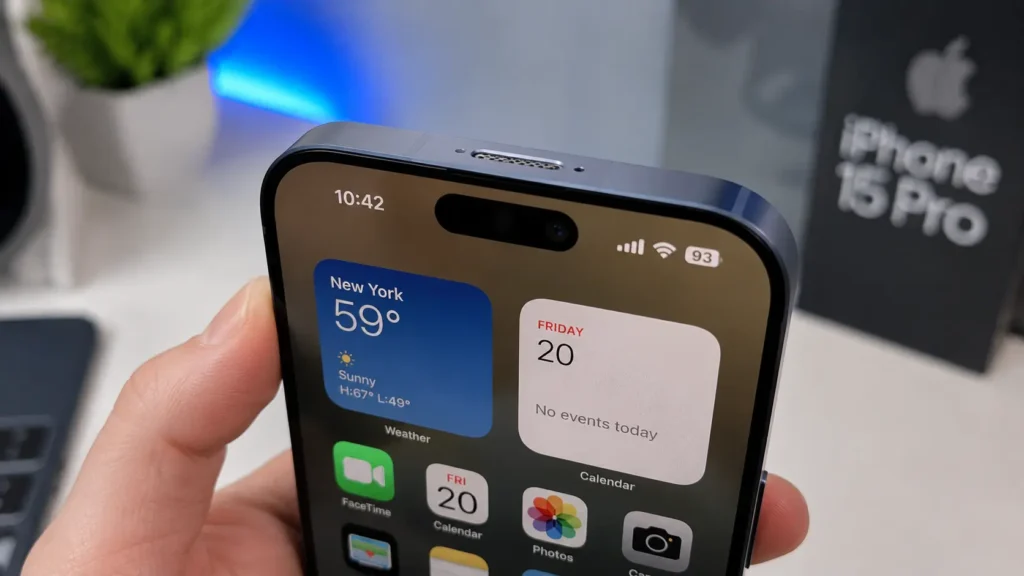
Let’s be honest: our phones live in our pockets and bags, which are basically black holes of lint, makeup, skin oils, and dust. If you find yourself thinking, “My iphone 15 ear speaker very quiet during calls,” look closely at that microscopic slit at the very top edge of the glass.
I’ve had clients bring in phones that looked immaculate, but under my microscope, the tiny acoustic mesh was completely sealed shut by a layer of foundation powder or pocket dust.
The Golden Rule: NEVER use a sewing needle, safety pin, or toothpick.
I cannot stress this enough. If you poke a metal pin into that delicate grille, you will instantly puncture the acoustic waterproof membrane. Once that is broken, your speaker is ruined, and your phone loses its water resistance entirely.
How to Clean It Like a Pro:
- The Dry Toothbrush Method: Grab a brand-new, super soft-bristled baby toothbrush. Gently brush the ear speaker slit in a sweeping outward motion. Do not press down; you want the bristles to flick the dirt out, not pack it deeper.
- The Blu-Tack Trick: Take a tiny piece of Blu-Tack (or clean mounting putty). Knead it until it’s warm and pliable. Press it gently against the ear speaker grille for a brief second, then pull it away quickly. It will lift out deep-seated oils and dust like magic.
- Isopropyl Alcohol (99%): Never pour liquids! Instead, slightly dampen the tip of your soft brush with 99% isopropyl alcohol (which evaporates almost instantly) and brush the mesh to dissolve stubborn face oils.
When to Visit the Apple Store & Warranty Coverage
So, you’ve cleaned the grille, toggled the settings, did a hard reset, and your iphone receiver speaker not working after update is still dead silent. It’s time to face the music: you might have a hardware failure.
Fortunately, consumer protection varies significantly by region, and you might not have to pay a dime.
Know Your Rights (US vs. UK/EU/CA/AU)
- United States: Apple offers a standard 1-year limited warranty. If you don’t have AppleCare+, an out-of-warranty speaker replacement at the Genius Bar will usually run you about $149 to $199 USD depending on your model, as they often have to replace the entire display assembly on newer screen designs.
- United Kingdom & Europe: You are in a much stronger position here. Under UK/EU consumer conformity laws, manufacturers must guarantee products against inherent defects for up to six years (two years minimum in EU member states). If your phone is under two years old and has no physical or water damage, Apple must generally repair the speaker free of charge. Out-of-warranty repairs cost roughly £120 to £180 GBP.
- Canada & Australia: Canadian consumer protection laws vary by province, but standard out-of-warranty repair costs sit around $180 to $280 CAD. In Australia, under the Australian Consumer Law (ACL), you are entitled to a remedy for a “reasonable period” after purchase, which often extends past the 1-year mark. Expect out-of-warranty fees around $220 to $340 AUD.
Before you walk in, always book an appointment using the official Apple Support app to avoid waiting hours in the store.
Frequently Asked Questions
Why is my iPhone top speaker not working on calls but works on speakerphone?
This happens because the iPhone uses two completely different speaker components. The top ear speaker (receiver speaker) is a low-power, directional transducer designed only for your ear. The speakerphone uses the high-power loudspeaker array located at the bottom of the device. If your top speaker is broken, clogged, or experiencing a software routing bug, your speakerphone will still function normally.
How do I fix the low call volume on my iPhone 14 Pro or iPhone 15?
First, perform a force restart to clear temporary system memory. Next, go to Settings > Face ID & Attention and toggle off Attention Aware Features, as this frequently dims call volume by mistake. Finally, gently clean the speaker slit with a soft-bristled brush to remove any dirt or makeup.
Did an iOS update cause my receiver speaker to stop working?
It is highly possible. Major updates (like the transition to iOS 17 or iOS 18) sometimes cause driver conflicts where the operating system fails to allocate proper voltage to the ear speaker during standard carrier calls. If your speaker works in the Voice Memos app but not during cellular calls, wait for the next minor software patch or reset your network settings.
Why can I barely hear the person on my iPhone unless they are on speakerphone?
This is usually caused by either a physical blockage in the receiver grille or an accidental shift in the audio balance settings. Check Settings > Accessibility > Audio & Visual and ensure the slider is balanced exactly in the centre. If that fails, clean the ear speaker using a dry toothbrush.