If you are an Android developer or a power user trying to run on-device LLMs, you have likely run into Google’s AI Edge SDK samples. I was recently sitting at my desk, trying to run the famous text-generation “Banana” demo on my new Pixel 9 Pro. I compiled the app, pushed it to my device via USB, clicked “Generate”—and… nothing. Just a silent crash and a blank screen.
This frustrating experience is incredibly common right now. Whether you are seeing the dreaded gemini nano banana error android or your custom AI Edge SDK code is refusing to initialize, the culprit is almost always the underlying system service: Google’s AICore.
On-device AI is incredibly powerful, but getting the 1.5GB+ Gemini Nano model to successfully download, unpack, and run on local hardware requires jumping through several undocumented hoops. Below, I’ll walk you through exactly why your “Banana” sample app is failing and how to force your device to get its act together.
Real-World Scenarios: Why Your ‘Banana’ Sample or Gemini Nano Fails to Initialize
Why does the ai edge sdk banana sample not working error occur in the first place? To understand this, we need to look under the hood of Android’s system-level AI architecture.
When you run an app built with the AI Edge SDK, the app doesn’t actually contain the LLM. That would make your APK massive. Instead, it queries AICore—a system-level service built into modern Android versions—to leverage the shared Gemini Nano model already present on the device.
If that model isn’t fully downloaded, initialized, or updated, your app will fail with a null pointer exception or a silent initialization error. Here are the most common reasons why this handshake fails:
- Carrier Blocked background downloads: If you are on a major carrier in the US, UK, CA, or AU (like T-Mobile, Verizon, EE, Rogers, or Telstra), your phone might be restricted from downloading heavy OTA (Over-The-Air) system assets over mobile data. Because Gemini Nano is a hefty 1.5GB+ download, your phone might wait indefinitely for a “perfect” Wi-Fi connection that never seems to trigger.
- The “Stuck Downloading” Bug: You check your settings, and you see gemini nano stuck downloading indefinitely. This happens when the download state in Google Play Services gets corrupted or paused due to aggressive battery saver profiles.
- Device Incompatibility: Currently, Gemini Nano is only officially supported on a handful of high-end chips. If you are trying to run this on anything older than a Pixel 8 Pro, Pixel 9 Pro, or a Samsung Galaxy S24 series device, AICore will refuse to spin up the model. If you have a base Pixel 8, you have to manually toggle developer options to even see it.
Hands-On Troubleshooting Steps: Force-Triggering Gemini Nano Model Download
If your pixel 8 pro gemini nano not showing up issue is driving you crazy, or your banana demo is failing to run, follow this sequence of steps to force your device to pull the model down immediately.
Step 1: Force-Stop AICore and Clear Storage
Before we can force a redownload, we need to clear out any corrupted download states.
- Go to Settings > Apps > See all apps.
- Tap the three dots in the top-right corner and select Show system.
- Search for AICore and tap it.
- Tap Force Stop, then go to Storage & cache and clear both cache and storage.
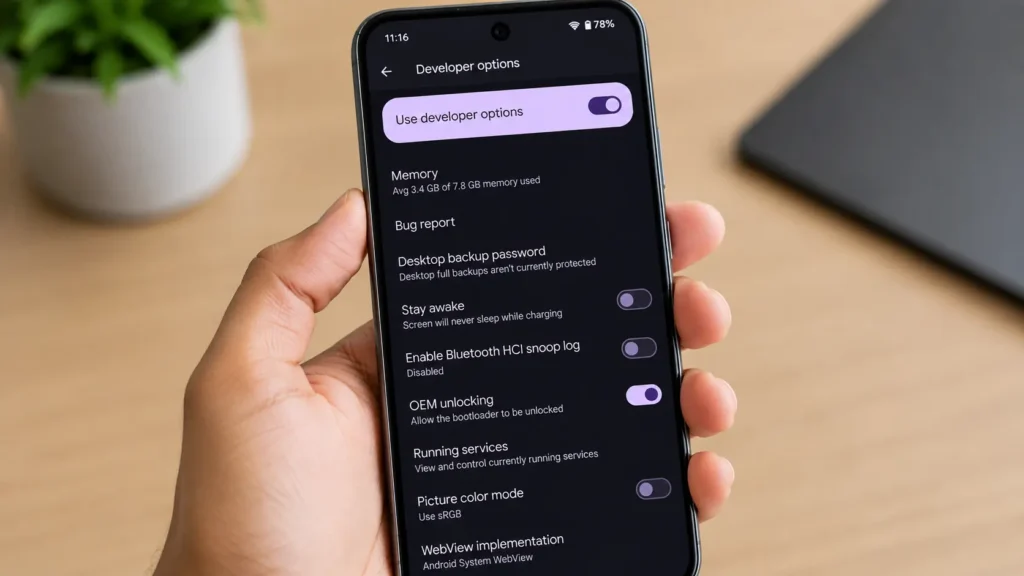
Step 2: Access Android Developer Options
You cannot manage AICore without digging into your phone’s system-level developer settings.
- Go to Settings > About phone.
- Tap Build number seven times until you see the “You are now a developer!” toast message.
- Go back to Settings > System > Developer options.
Step 3: Enable AICore Developer Features
Scroll down until you find the AICore settings.
- Look for AICore Settings (or search for it within Developer Options).
- Toggle on Enable AICore Persistent Task. This ensures the system doesn’t kill the background process responsible for managing the model.
- If available, toggle Enable On-Device GenAI.
- Perform an aicore persistent task force stop and restart your phone to force the service to register these new settings.
# You can also trigger this via ADB if you prefer terminal commands:
adb shell setprop persist.device_config.runtime_native_boot.device_kernel_launches true
adb shell am force-stop com.google.android.aicore
Developer Guide: Debugging ‘Banana’ App Errors in Android Studio
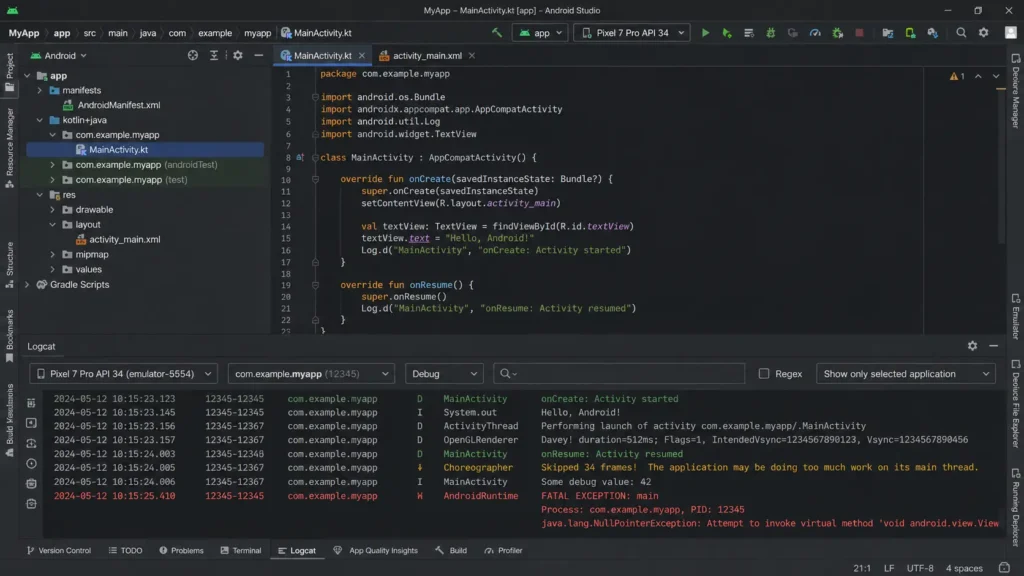
If you are trying to build or run the AI Edge SDK text classification sample (often referred to as the banana demo) and it keeps crashing, you need to look at what Logcat is telling you.
Connect your device to your computer, open Android Studio, and open the Logcat tab. Filter your logs using the following query:
tag:AICore or tag:Gemini or simply text:banana
Handling Common Exception Errors
1. The “Model Not Ready” Exception (Error Code -2)
If you see an error indicating that the model is “not available” or “not ready,” it means AICore knows your device is compatible, but the physical 1.5GB binary file is not fully downloaded to /data/system_de/0/vrm/ yet.
To fix this, keep your phone plugged into a charger, connect to a strong Wi-Fi network (turn off mobile data temporarily to avoid carrier throttling), and leave it idle for about 20 minutes. This gives the background orchestrator the green light to download the file.
2. Null Pointer Exception during initialization
If your app crashes on this line: val predictor = InferenceBindable.create(...)
It means the AI Edge SDK wrapper is returning a null object because it cannot bind to the AICore system service. Ensure that your build.gradle file is using the latest matching version of the AI Edge SDK. Google frequently updates the API contracts, and an outdated SDK version will fail to communicate with an updated AICore system app.
💡 Expert Insight: The DNS and VPN Blockade
Here is a quick tip that you won’t find in standard Google documentation: Check your adblockers and custom DNS settings.
If you are running a local VPN, a system-wide adblocker (like AdGuard), or a custom DNS (like NextDNS) to block trackers, you might be blocking the specific Google delivery network domains responsible for distributing the Gemini Nano weights. Temporarily switch your private DNS to “Automatic” or “Off” and disable your VPN when forcing the initial model download.
Common Pitfalls to Avoid
When trying to get the Gemini Nano model running on your test devices, keep these common traps in mind:
- Sideloading Corrupt AICore APKs: Many developers get impatient and download AICore APKs from third-party sites. Don’t do this. AICore is deeply integrated into the system partition and requires specific signatures. Sideloading a mismatched version can break system-level AI features entirely, forcing you to factory reset your device.
- Thermal Throttling & Battery Saver: Android’s system health manager is extremely aggressive. If your phone is hot from compiling apps, or if your battery is under 20%, Android will pause the Gemini Nano inference engine to save power and reduce heat. Always test your AI applications with at least 50% battery and a cool device.
- Ignoring GPU Acceleration Configurations: The AI Edge SDK relies heavily on the GPU (via WebNN or custom OpenCL/Vulkan delegates) to run inference smoothly. If your build settings target CPU-only execution fallback, the initialization might time out and crash the app.
Alternative Workarounds & Verified Solutions from the Developer Community
If you have tried everything above and your demo is still not running, the global developer community has uncovered a couple of excellent workarounds:
- The Wi-Fi Hotspot Trick: Several developers on Reddit and XDA discovered that if your carrier is blocking the download, connecting your phone to a temporary Wi-Fi hotspot hosted by another phone (using a different mobile network) can bypass the local carrier-specific download blocks.
- The “Google App” Beta Program: Sometimes, the system requires a newer version of the Google Play Services ecosystem to unlock AICore fully. Joining the Beta program for Google Play Services and the Google App via the Play Store often pushes the necessary background components to your device immediately.
Frequently Asked Questions
Why does my Pixel 8 Pro say Gemini Nano is “not showing up” or unavailable?
On some Pixel 8 Pro models, the system requires you to manually opt-in to AICore features. Ensure your system language is set to English (US or UK) and that you have enabled “AICore Persistent Task” in the developer options. Also, verify that your device has at least 10GB of free storage space, as the OS will refuse to unpack the LLM if storage space is tight.
How do I verify if Gemini Nano is actually downloaded on my phone?
You can verify this by checking the storage size of the AICore app. Go to Settings > Apps > System Apps > AICore. If the storage usage is only a few megabytes (e.g., 20MB–50MB), the model is not downloaded. Once the model is successfully pulled down, the app’s storage usage will jump to over 1.5GB to 2GB.
What is the exact purpose of the “Banana” demo?
The “Banana” demo is a template application provided by Google to showcase the capabilities of the AI Edge SDK. It demonstrates how to perform on-device text generation, classification, or summarization without needing an active internet connection, highlighting the speed, privacy, and cost benefits of local LLMs.
Will Gemini Nano work on mid-range Android devices?
Currently, no. On-device LLMs require immense RAM configurations (typically 12GB RAM or higher, with a portion dedicated exclusively to the NPUs/GPUs) and specialized silicon architecture. Google restricts Gemini Nano to premium tiers like the Pixel 8 Pro, Pixel 9 series, and Samsung Galaxy S24 series to ensure acceptable generation speeds and avoid system-wide lag.
By systematically clearing your AICore storage, enabling persistent background tasks in your developer menu, and monitoring your initialization states through Logcat, you should be able to get your local development setup running seamlessly. On-device AI is still in its early, bumpy stages—but when you finally see that local LLM generating text instantly without an API call, the debugging headache is absolutely worth it!