I was sitting on the London Underground’s Jubilee line last Tuesday, heading into the office, when my pocket started feeling unusually warm. Not just cozy-warm, but “is my phone about to melt through my trousers” warm.
I pulled out my Samsung Galaxy S24, which had freshly updated to One UI 8.5 over my home broadband the night before. The battery percentage was plummeting. I’d lost about 15% in a twenty-minute commute.
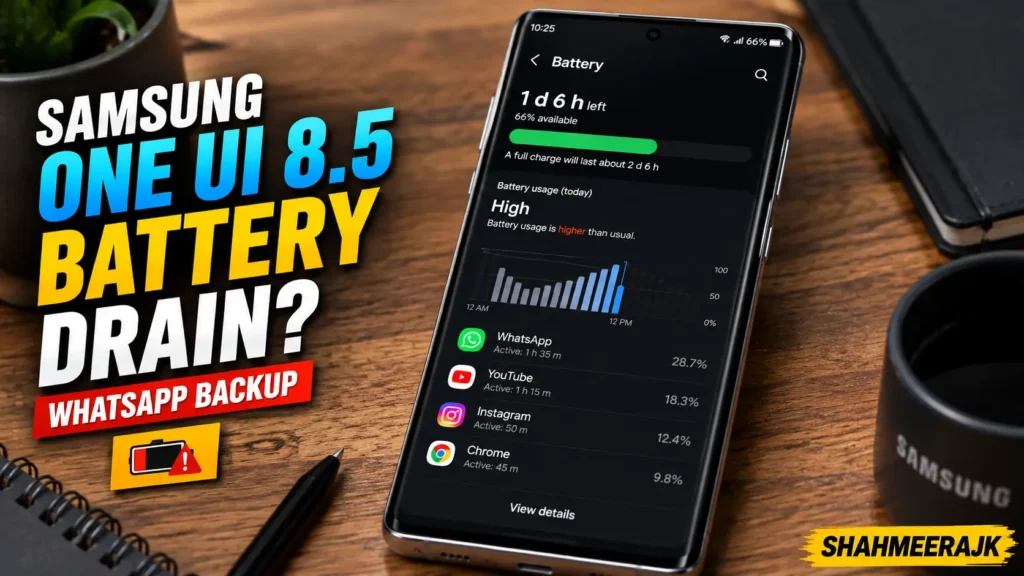
A quick dive into the settings showed that WhatsApp was chewing through an absurd amount of power in the background. Specifically, the daily auto-backup was stuck in an endless loop, dragging the Android System and Google Play Services down with it.
If you have recently updated your Samsung Galaxy device to One UI 8.5 and noticed your battery life has gone off a cliff, you are not alone. Let’s look at why this happens and how to fix it.
Why One UI 8.5 Triggers the WhatsApp Backup Battery Drain
When Samsung rolls out a major update like One UI 8.5, it introduces deep-level changes to how the operating system manages resources, background app usage, and power saving. On paper, these changes are designed to improve performance. In reality, they sometimes cause immediate conflicts with heavily used third-party apps.
WhatsApp’s Google Drive Backup relies on a complex handshake between:
- The WhatsApp application itself.
- Google Play Services (which manages the cloud connection).
- The Android System framework (which allocates CPU cycles and network permissions).
When you update to One UI 8.5, the system’s aggressive battery optimization policies can interrupt WhatsApp just as it attempts to upload your media. Instead of pausing gracefully, the app gets stuck in a retry loop. It keeps the CPU awake (holding what developers call a “wake lock”), causing massive battery drain and heating up your device.
How to Stop WhatsApp Backup from Draining Battery on Samsung
Over the last week, I have experimented with various configurations on my own phone and several of my colleagues’ Samsung devices. Here is the step-by-step troubleshooting sequence that actually works.
Step 1: Force Stop WhatsApp and Clear the Cache
Let’s start with the simplest fix. Sometimes, the active sync process is simply corrupted and needs a hard reset.
- Long-press the WhatsApp icon on your home screen or app drawer and tap the “i” (App Info) icon.
- Tap Force Stop in the bottom right corner.
- Scroll down and select Storage.
- Tap Clear Cache (do NOT tap Clear Data, or you will delete your local database and chat history).
⚠️ Warning: Make sure you only select "Clear Cache". Clearing data will reset the app entirely, forcing you to register your phone number again.
Step 2: Restrict Background App Usage in Device Care
By default, One UI 8.5 tries to manage background activity dynamically. However, we need to manually force WhatsApp to behave when it isn’t actively on our screen.
- Open your phone’s Settings.
- Navigate to Device Care (or Battery and Device Care on some models).
- Tap on Battery.
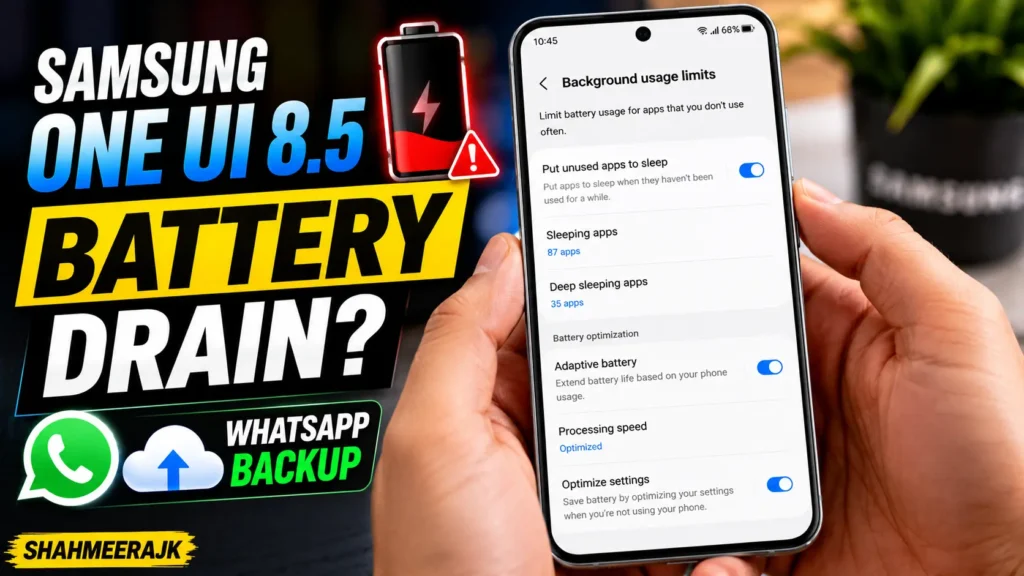
- Go to Background Usage Limits.
- You can place WhatsApp into Sleeping Apps or Deep Sleeping Apps.
Note: Placing WhatsApp in “Deep Sleeping Apps” will stop the auto-backup from running silently in the background at 2:00 AM. It will only run when you open the app. If you rely on real-time notifications, stick to Sleeping Apps rather than Deep Sleeping.
Step 3: Clear the Android System Cache Partition
This is a classic Samsung power-user trick. When major firmware updates like One UI 8.5 roll out, legacy cache files from previous versions remain in the system partition. These stale files frequently cause background loops.
Wiping the Cache Partition does not delete your personal photos, files, or messages. It simply clears out temporary system files.
Here is the trick for modern Samsung Galaxy devices (especially those sold in the UK and Europe):
- Turn off your device completely.
- Connect your phone to a laptop, PC, or even a USB-C headset using a USB-C cable. (Crucial step: modern Samsung phones often will not enter recovery mode without a USB connection detected).
- Press and hold the Volume Up and Power buttons simultaneously.
- When the Samsung logo appears, release the buttons. You will boot into the Android Recovery screen.
- Use the Volume buttons to navigate down to Wipe Cache Partition.
- Press the Power button to select it.
- Confirm by selecting Yes.
- Once finished, select Reboot System Now.
Fixing the Google Drive and WhatsApp Sync Loop
If your battery is still draining rapidly overnight during the auto-backup window, the root issue lies with the Google Drive Backup configuration itself. Huge media files, particularly videos, can stall the upload, especially on weaker mobile network connections.
Exclude Videos from the Backup
If you are part of active group chats where people constantly share large video clips, your backup size can easily swell to several gigabytes. Uploading this every night over Wi-Fi or mobile data is a recipe for battery disaster.
- Open WhatsApp.
- Tap the three dots in the top right corner and go to Settings.
- Select Chats and then Chat Backup.
- Scroll to the bottom and toggle off Include Videos.
This alone can reduce your backup size by up to 80%, allowing the sync process to finish in minutes rather than hours, saving precious battery cycles.
Reset Google Play Services
Because WhatsApp uses Google Play Services as a bridge to upload to Google Drive, a glitch in Google’s background services will directly affect your phone’s thermal and battery performance.
- Open Settings -> Apps.
- Search for Google Play Services.
- Tap Storage -> Manage Storage.
- Tap Clear Cache.
- Restart your phone.
Expert Insight / Pro Tip: If your backup is constantly sticking at 99%, it is almost always a credential validation issue between your Samsung account, your Google Account, and WhatsApp’s security token. To bypass this, go to your phone’s Settings > Accounts and Backup > Manage Accounts. Tap your Google Account, select Remove Account, restart your phone, and then re-add it. This forces a fresh, clean authentication handshake.
Sideloading via APK Mirror: The Developer Workaround
Sometimes, the current build of WhatsApp on the Google Play Store contains a memory leak that is incompatible with the updated APIs in One UI 8.5.
If you have tried all the steps above and your phone is still draining rapidly, you can manually update to a newer beta version of WhatsApp (or downgrade to a known stable release) using a trusted source like APK Mirror.
- Go to the APK Mirror website.
- Search for “WhatsApp Messenger”.
- Download a slightly newer beta version than the one currently installed on your phone.
- Ensure your phone settings allow installation from unknown sources (your browser will prompt you for this).
- Install the downloaded APK over your current installation. This will update the application files without deleting your local databases.
Fast Charging and Heat Management Post-Update
It is worth noting that if your phone is running hot due to background backup loops, using Samsung’s Fast Charging feature will only compound the heat issue. High temperatures accelerate battery degradation.
While you are sorting out these software bugs, I highly recommend disabling Fast Charging temporarily if you charge your phone overnight.
Go to Settings > Device Care > Battery > Charging settings and turn off Fast Charging. Once the backup loop bug is resolved, you can safely turn it back on.
Frequently Asked Questions
1. Why is my Samsung phone hot during a WhatsApp backup?
When WhatsApp backs up your chats and media, it compresses your data into an encrypted archive before uploading it to Google Drive. This compression requires substantial CPU processing power. If the backup hangs due to a compatibility bug in One UI 8.5, the CPU runs at maximum speed indefinitely, generating significant heat.
2. Will clearing Google Play Services cache delete my WhatsApp chats?
No. Google Play Services manages cloud synchronization, location services, and Google account credentials. Clearing its cache only removes temporary system files used for syncing. Your local WhatsApp database and physical chat history remain completely untouched.
3. How do I stop WhatsApp backup from running on mobile data?
You can easily restrict backups to Wi-Fi only. In WhatsApp, go to Settings > Chats > Chat Backup and make sure the option for Back up over cellular (or mobile data) is toggled off. This prevents massive background battery drain when you are out and about on 4G or 5G networks.
4. What is the difference between Background Restrictions and Deep Sleeping on Samsung?
When you apply Background Restrictions to an app via standard Android settings, the OS limits its background running frequency. Putting an app into Deep Sleeping via Samsung’s Device Care completely stops the app from running in the background at all. A deep sleeping app will only run when you actively open it, meaning you may miss real-time notifications until the app is launched.
To Wrap Things Up
Mobile operating system updates are great for security and new features, but they frequently disrupt the delicate ecosystem of background syncs. If your Samsung Galaxy is suffering from battery drain on One UI 8.5, don’t panic or run to the nearest repair shop.