You’re sitting at your desk, you hear your phone buzz with an incoming text, and you instinctively reach out to grab it. You press the power button. Nothing. You tap the screen. Still nothing. You plug it into the wall, and it emits that familiar, reassuring vibration indicating it’s charging—yet the display remains as dark as a rainy midnight.
It is one of the most frustrating modern conundrums: your device is clearly alive, yet it’s completely blind.
Over my years of tinkering with stubborn hardware and writing about mobile tech, I’ve encountered this specific headache dozens of times. It’s what we in the industry call the Black Screen of Death. The good news? Because your phone is still producing haptic feedback (vibrations) and sounds, we know the brain of the device—the motherboard—and the power source the lithium-ion battery—are functioning. The bridge between them and your eyes is just temporarily broken.
Let’s roll up our sleeves and walk through the exact troubleshooting steps I use to resurrect these seemingly dead displays before you spend hundreds of dollars at a repair shop.
Why Is Your Phone Vibrating with a Black Screen?
Before diving into the fixes, we need to understand what’s happening under the hood. When a phone vibrates but won’t light up, the issue generally falls into one of two camps:
- A Software System Crash: The phone’s operating system (Android or iOS) has experienced a severe system error, freezing the display output pipeline while keeping background processes (like haptics) running.
- A Hardware Disconnection or Failure: The physical link between the display panel (whether it’s a modern AMOLED display or a traditional LCD) and the logic board has been severed or damaged. This often happens after a drop, even if the outer glass didn’t crack.
Step 1: Trigger a Force Restart (Soft Reset)
Nine times out of ten, a stubborn black screen is simply a crashed user interface. The phone is “on,” but the software rendering the display has crashed. A simple tap of the power button won’t fix this; you need to force a soft reset.
This process cuts power momentarily at a system level without erasing your personal data.
For iPhones:
- Press and quickly release the Volume Up button.
- Press and quickly release the Volume Down button.
- Press and hold the Side (Power) button for at least 15 seconds. Keep holding it even when you feel vibrations. Only let go when the Apple logo appears on the screen.
For Android Phones (Samsung, Pixel, OnePlus):
- Press and hold both the Power button and the Volume Down button simultaneously.
- Keep holding them down for 10 to 20 seconds.
- Once you feel a sharp vibration or see the manufacturer’s logo boot up, release the buttons.
Personal Experience: I remember a buddy of mine brought me his Galaxy S21 last winter. It was buzzing constantly in his pocket but stayed completely dark. A simple 15-second hold of the Power and Volume Down buttons brought the Samsung logo roaring back to life. He was ready to buy a new phone; instead, it took us less than a minute to fix.
Step 2: The “Massage” Trick for Loose Internal Cables
If the force restart didn’t work, we need to look at the physical connections. Inside your phone, the screen connects to the motherboard via a tiny, Lego-like snap-on connector known as the display ribbon cable.
When you drop your phone (even onto a soft surface like carpet), the impact can slightly dislodge this LCD connector or the digitizer cable. The phone remains fully functional, but the screen stops receiving data and power.
To fix this without opening the casing, you can try the “massage” technique:
- Clear a clean workspace and lay down a soft cloth to protect your camera lenses.
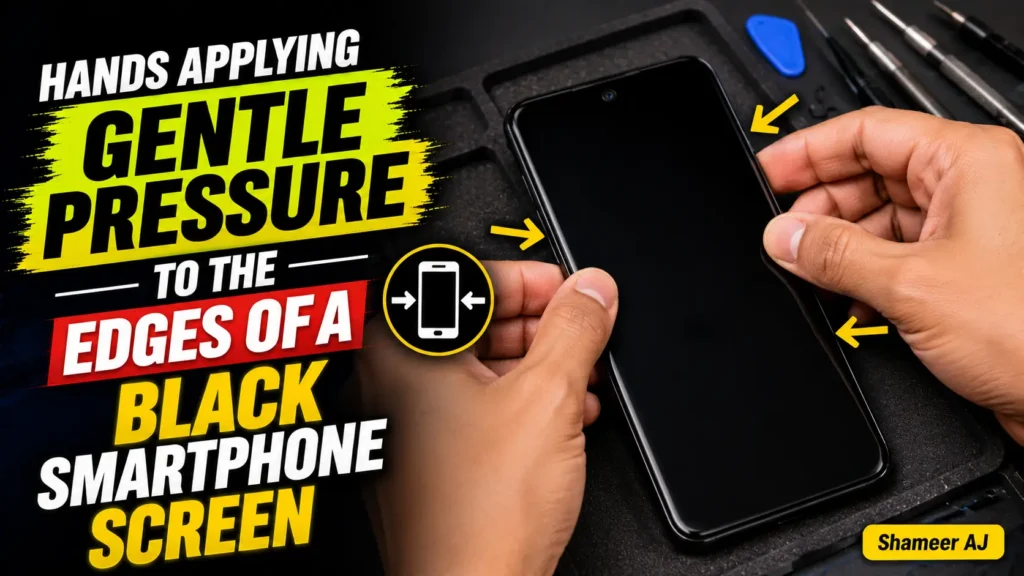
- Place your thumbs on the screen and your fingers on the back of the phone, effectively sandwiching the device.
- Apply gentle but firm pressure, squeezing the phone together. Move your thumbs systematically around the screen, especially near the top-right and middle sections where the display connectors typically plug into the board.
- If you hear or feel a tiny click, you may have just re-seated a loose ribbon cable.
- Attempt a force restart again.
⚠️ Warning: Do not press so hard that you crack the glass. Use consistent, even pressure. If your phone has a swollen back panel, skip this step immediately, as your lithium-ion battery might be compromised.
Step 3: Test with Recovery Mode
If your screen is black due to a corrupted firmware update, your phone might fail to boot into its operating system but can still access its bare-bones diagnostic menu. By booting into Recovery Mode, we can see if the screen is physically capable of displaying images.
Booting Android into Recovery Mode:
- Turn the phone off (if you can’t, let the battery drain completely until it stops vibrating, then plug it in for 5 minutes).
- Press and hold the Power and Volume Up buttons together.
- Release them only when you feel a vibration. If the screen remains black but you feel the vibration, the screen hardware itself is likely dead. If a text-based menu appears, your hardware is fine, and you need to perform a factory reset from this menu.
Booting iPhone into Recovery Mode (DFU/Recovery):
- Connect your iPhone to a computer via a Lightning or USB-C cable.
- Open iTunes (Windows) or Finder (Mac).
- Perform the Force Restart sequence (Volume Up, Volume Down, then hold the Power button), but keep holding the Power button even after the Apple logo appears. Keep holding until you see the “Connect to Computer” screen on your phone.
- If the screen lights up with this graphic, your hardware is perfectly healthy! You can simply click “Update” or “Restore” on your computer to fix the broken iOS software.
Step 4: The Temperature and Charging Reset
Sometimes, extreme weather plays tricks on our phone hardware. Living in the Midwest, I’ve seen lithium-ion batteries do bizarre things in sub-zero winters. If a phone gets too cold or too hot, its thermal protection protocols might kill the display driver while leaving background haptics active.
- Move your phone to a room-temperature environment (around 70°F / 21°C).
- Let it sit idle for 30 minutes to stabilize its internal temperature.
- Plug it into a certified, low-draw wall charger (avoid high-speed fast chargers for this step, as they generate excess heat).
- Leave it alone on the charger for a full hour. Sometimes, deep-draining the battery causes the screen controller to crash, and it requires a slow, steady trickle charge to wake back up.
Pro Tip: How to Rescue Your Data First
Before you take your phone to a retail store where they might factory reset your device, you should try to pull your precious photos and contacts off it.
If you have an Android device with USB-C debugging previously enabled, you can plug your phone into a PC and use free screen-mirroring software like Scrcpy to view and control your phone’s screen from your desktop. Alternatively, you can connect your phone to a USB-C hub, plug in a computer monitor via HDMI, and hook up a USB mouse. On devices like Samsung (via DeX) or newer Pixels, this will instantly mirror your phone’s interface onto the monitor, allowing you to back up everything to the cloud.
When to Call It: Recognizing Hardware Damage
If you have tried force restarting, squeezing the connector points, charging, and booting into recovery, and you still have nothing but a black screen that occasionally vibrates, it is time to accept that the display panel itself has failed.
Modern AMOLED display panels are incredibly thin. Even if your external glass is flawless, the microscopic organic light-emitting diode layers underneath can crack from a drop, cutting off the display completely.
At this point, you have two options:
- DIY Repair: If you are comfortable with electronics, you can order a replacement display assembly (which includes the screen and the digitizer) online. You will need a heat gun to soften the adhesive, some guitar picks to pry open the chassis, and a steady hand to plug in the new display ribbon cable.
- Professional Repair: Take the device to an authorized repair technician. Let them know you have haptic feedback but a black display. This tells them the motherboard is safe, meaning they only need to replace the screen assembly, not the entire device.
Frequently Asked Questions
Why does my phone vibrate but the screen won’t turn on after dropping it?
When a phone is dropped, the impact can easily loosen the internal display ribbon cable from its socket on the motherboard. Even if the outside glass didn’t shatter, the physical connection that carries power and video signals to your screen has likely popped out.
How can I backup my data if the screen is completely black?
For iPhones, plug your phone into a trusted computer and back it up via Finder or iTunes. For Android devices, you can plug in a USB-C hub with an HDMI out port and connect it to a TV or monitor. Many modern Android phones will output their screen directly, allowing you to navigate your files using a connected USB mouse.
Is the “Black Screen of Death” expensive to fix?
If it’s a software glitch, you can fix it for free using a Force Restart or Recovery Mode. If it’s a hardware issue requiring a brand-new screen panel, expect to pay between $100 to $300 depending on whether your phone uses an expensive AMOLED display or a cheaper LCD panel.
Can a dead battery cause the screen to stay black while the phone still vibrates?
Yes. If a lithium-ion battery is extremely degraded or has dropped below its safe voltage threshold, it may have just enough juice to trigger the vibration motor (which requires very little power) but not enough current to power up the resource-heavy display panel. Try leaving it on a slow charger for at least an hour.