Samsung Green Line Issue: Why It Happens and What You Can Do
Samsung Green Line Issue: Why It Happens and What You Can Do
A green vertical line appearing on your Samsung phone screen can be frustrating, especially when the device was working normally just a moment ago. The line may appear suddenly, remain visible all the time, or become more noticeable when you increase the screen brightness.
This problem is commonly associated with display-related faults, particularly on Samsung phones with AMOLED screens. However, a green line does not always mean your entire display is damaged. A software glitch, display connection problem, overheating, or physical damage may also be responsible.
Before spending money on a screen replacement, try a few basic checks to understand what is causing the problem.
Why Does a Green Line Appear on a Samsung Screen?
A green line usually appears because something is affecting how the display produces or controls pixels along a vertical section of the screen.
Some common causes include:
- Display panel damage or failure
- Loose or damaged display connections
- Software glitches after an update
- Physical pressure or accidental drops
- Excessive heat
- Internal hardware problems
Identifying when the line first appeared can help narrow down the cause.
1. Restart Your Samsung Phone
Start with a simple restart. Sometimes, a temporary software issue can affect how the display operates.
To restart your Samsung phone:
- Press and hold the Power and Volume Down buttons.
- Wait for the power menu to appear.
- Tap Restart.
- Allow the phone to boot completely.
- Check whether the green line is still visible.
If the line disappears, a temporary software problem may have been responsible.
However, if it remains visible after restarting, continue with the next checks.
2. Check for a Software Update
A software update can sometimes introduce display-related bugs or compatibility problems. Samsung may also release follow-up updates to address known issues.
To check for an update:
- Open Settings.
- Scroll down and tap Software Update.
- Select Download and Install.
- Install any available update.
- Restart your phone after installation.
If the green line appeared immediately after an update, check whether Samsung has released a newer version for your particular model.
A software update cannot repair a physically damaged display, but it is worth checking before considering hardware repair.
3. Check Whether the Green Line Appears in a Screenshot
One useful way to investigate the issue is to take a screenshot.
Follow these steps:
- Open the screen where the green line is visible.
- Press the Power and Volume Down buttons together.
- Open Gallery and view the screenshot.
- Check whether the green line appears in the captured image.
If the line is visible in the screenshot when viewed on another device, a software or graphics-related issue may be involved.
If the screenshot looks normal on another device while the green line remains visible on your Samsung screen, a physical display problem becomes more likely.
This test is not a definitive hardware diagnosis, but it can help narrow down the cause.
4. Boot Your Samsung Phone in Safe Mode
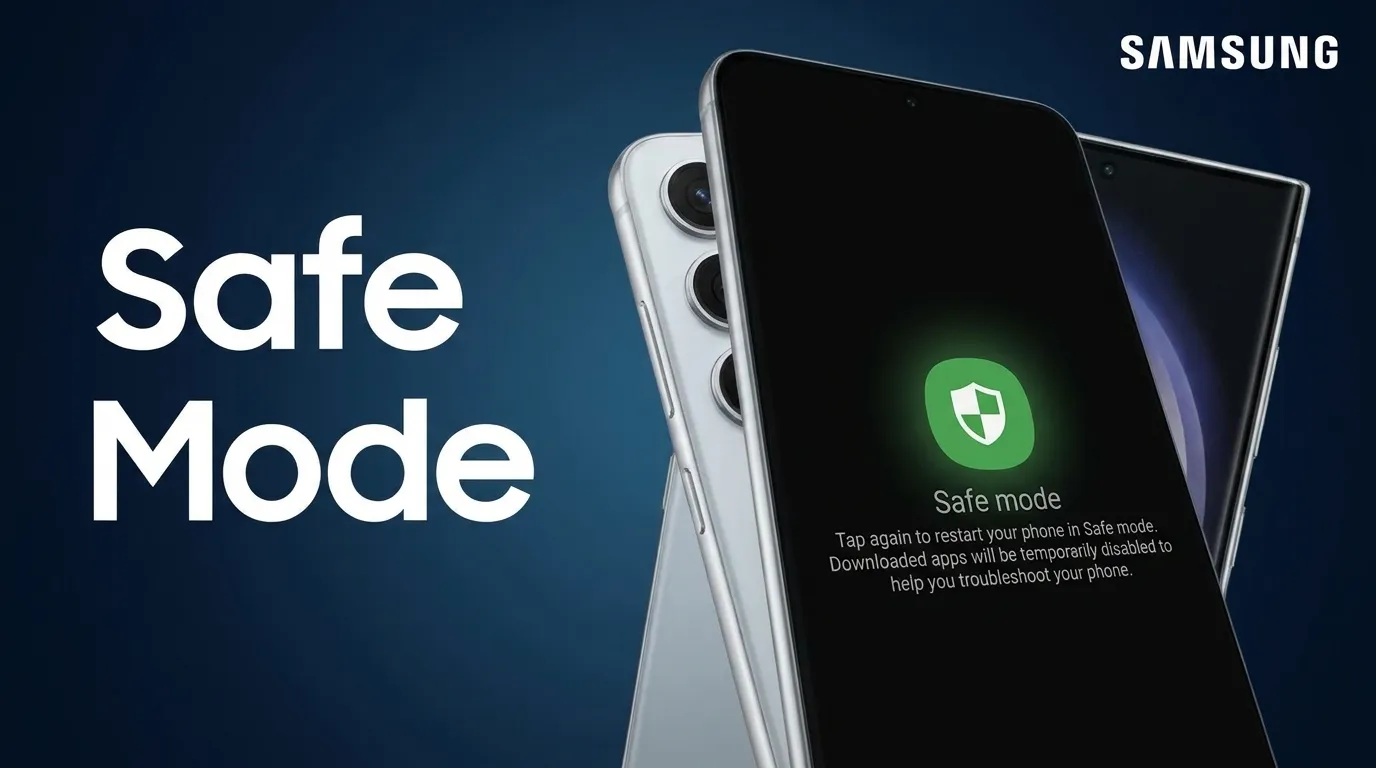
Safe Mode temporarily disables downloaded third-party apps. This helps determine whether an installed application is interfering with normal phone operation.
To enter Safe Mode:
- Open the Power menu.
- Touch and hold the Power Off option.
- When the Safe Mode option appears, tap it.
- Wait for your phone to restart.
- Check whether the green line remains.
If the issue disappears in Safe Mode, a recently installed app may be contributing to the problem.
Uninstall recently downloaded apps one at a time and restart your phone normally.
If the green line remains visible in Safe Mode, a third-party app is less likely to be the cause.
5. Check Your Phone for Physical Damage
A green line can appear after accidental drops, pressure, or exposure to moisture.
Even if the front glass looks perfectly normal, the internal display panel may still be damaged.
Look for these warning signs:
- The green line appeared after dropping the phone.
- Additional vertical or horizontal lines are visible.
- Parts of the screen flicker.
- Touch response becomes unreliable.
- Black spots or unusual colors appear.
- The display changes when pressure is applied.
Do not press, bend, or massage the screen to remove the line. This can make internal display damage worse.
If you notice physical damage, arrange a professional inspection.
6. Check Your Samsung Display Settings
Although display settings usually do not cause a permanent green line, checking them can help identify unusual display behavior.
Try these adjustments:
- Open Settings.
- Tap Display.
- Temporarily change the screen resolution if your model supports it.
- Adjust the screen brightness.
- Turn off Eye Comfort Shield temporarily.
- Check whether the display behavior changes.
You can also switch between available screen modes on supported Samsung models.
If the green line remains visible regardless of these settings, the problem is more likely related to the display hardware.
7. Avoid Overheating Your Samsung Phone
Excessive heat can affect smartphone components and may make existing display problems more noticeable.
If your phone becomes unusually hot:
- Close demanding applications.
- Stop gaming or recording videos temporarily.
- Remove the phone case if it is trapping heat.
- Keep the device away from direct sunlight.
- Avoid using the phone while charging if it becomes excessively hot.
Allow the phone to cool naturally before using it again.
Do not put your Samsung phone in a refrigerator or freezer to cool it down. Sudden temperature changes and condensation can cause additional damage.
8. Check Samsung Members for Device Diagnostics
Samsung Members includes diagnostic tools that can help check different parts of your device.
To run available diagnostics:
- Open the Samsung Members app.
- Select Support.
- Tap Phone Diagnostics.
- Choose the available display or screen-related test.
- Follow the instructions.
The available tests depend on your phone model and software version.
These diagnostics may help identify certain device problems, but they cannot always detect a failing AMOLED panel.
If the green line is clearly visible, professional display inspection may still be necessary.
9. Should You Factory Reset Your Samsung Phone?
A factory reset should not be your first solution.
It removes personal data and restores the device to its original software settings. If the green line is caused by physical display damage, resetting the phone will not fix it.
Only consider a factory reset when you have strong reasons to suspect a software problem and other troubleshooting steps have failed.
Before resetting:
- Back up your photos and important files.
- Save important contacts and documents.
- Make sure you know your Samsung and Google account details.
- Open Settings.
- Go to General Management.
- Select Reset.
- Tap Factory Data Reset and follow the instructions.
After the reset, check the display before restoring all your apps.
Remember that a factory reset is unlikely to remove a permanent green line caused by hardware failure.
Can a Samsung Green Line Issue Be Fixed Without Replacing the Screen?
It depends on the actual cause.
If the problem is related to a temporary software glitch, restarting the device or installing an update may help.
However, if the green line is caused by a damaged AMOLED panel, internal display connection, or other hardware failure, professional repair is usually required.
In many cases, replacing the display assembly is the appropriate solution.
Avoid attempting DIY screen repairs unless you have the necessary tools and repair experience.
Does Samsung Offer Free Green Line Screen Replacement?
Samsung's repair and warranty policies can vary by country, device model, purchase date, and the cause of the problem.
In some situations, Samsung may offer a complimentary screen replacement or another service option under a specific service program.
However, this is not guaranteed for every device showing a green line.
Before paying for a repair:
- Contact Samsung Support in your country.
- Provide your exact phone model.
- Explain when the green line first appeared.
- Mention whether the phone has experienced a drop or liquid exposure.
- Ask whether your device qualifies for a warranty repair or any applicable service program.
Keep your purchase receipt and warranty information available.
If your phone is outside the warranty period, request a repair estimate before approving the work.
How Much Does It Cost to Repair a Samsung Green Line?
The repair cost depends on your Samsung model, display type, local service rates, and whether the entire display assembly needs replacement.
Flagship Galaxy S and Z series phones generally have more expensive displays than many Galaxy A series models.
Before choosing a repair provider, compare the cost of an original replacement display with the price of a reputable refurbished or replacement device.
Always ask whether the repair includes an original Samsung display and what warranty is provided on the replacement part.
How to Prevent Samsung Display Problems
You cannot prevent every display failure, but a few precautions can reduce the risk of physical damage.
- Use a protective phone case.
- Install a good-quality screen protector.
- Avoid placing heavy objects on your phone.
- Keep the device away from excessive heat.
- Avoid moisture exposure.
- Use a reputable repair provider.
- Install official Samsung software updates.
If a green line appears, avoid repeatedly pressing the affected area or trying online heating and cooling tricks.
Frequently Asked Questions
Why did a green line suddenly appear on my Samsung phone?
A green line may appear because of AMOLED display failure, internal connection damage, overheating, physical pressure, or a software issue. If it remains after restarting, hardware inspection may be necessary.
Can a software update cause the Samsung green line issue?
Some users report green lines appearing after software updates. However, the timing alone does not prove that the update damaged the display. An existing display weakness or hardware fault may become noticeable around the same time.
Will restarting my Samsung phone remove the green line?
Restarting can help if the issue is caused by a temporary software glitch. It will not repair a damaged display panel or internal hardware connection.
Can I fix a green line without replacing my Samsung screen?
Sometimes, yes, if the cause is software-related. However, a permanent vertical line caused by AMOLED panel damage usually requires professional repair.
Is the Samsung green line issue covered by warranty?
It depends on your device's warranty status, local Samsung policies, and the inspection results. Contact Samsung Support to confirm whether your phone qualifies for a complimentary repair.
Is it safe to continue using a Samsung phone with a green line?
A single green line does not automatically mean the phone is unsafe to use. However, if the display becomes hot, starts swelling, flickers severely, or shows signs of battery damage, stop using it and seek professional service.
Final Thoughts
A green line on your Samsung screen can result from software problems or internal display damage. Start by restarting your phone, checking for software updates, testing Safe Mode, and taking a screenshot to narrow down the cause.
If the line remains visible after these checks, especially following a drop or physical damage, contact Samsung Support or an authorized repair provider.
Before paying for a new display, always check whether your phone qualifies for warranty coverage or a Samsung service offer. This could save you from an unnecessary repair expense.