Why Does My iPhone Battery Drain So Fast Even When I'm Not Using It?
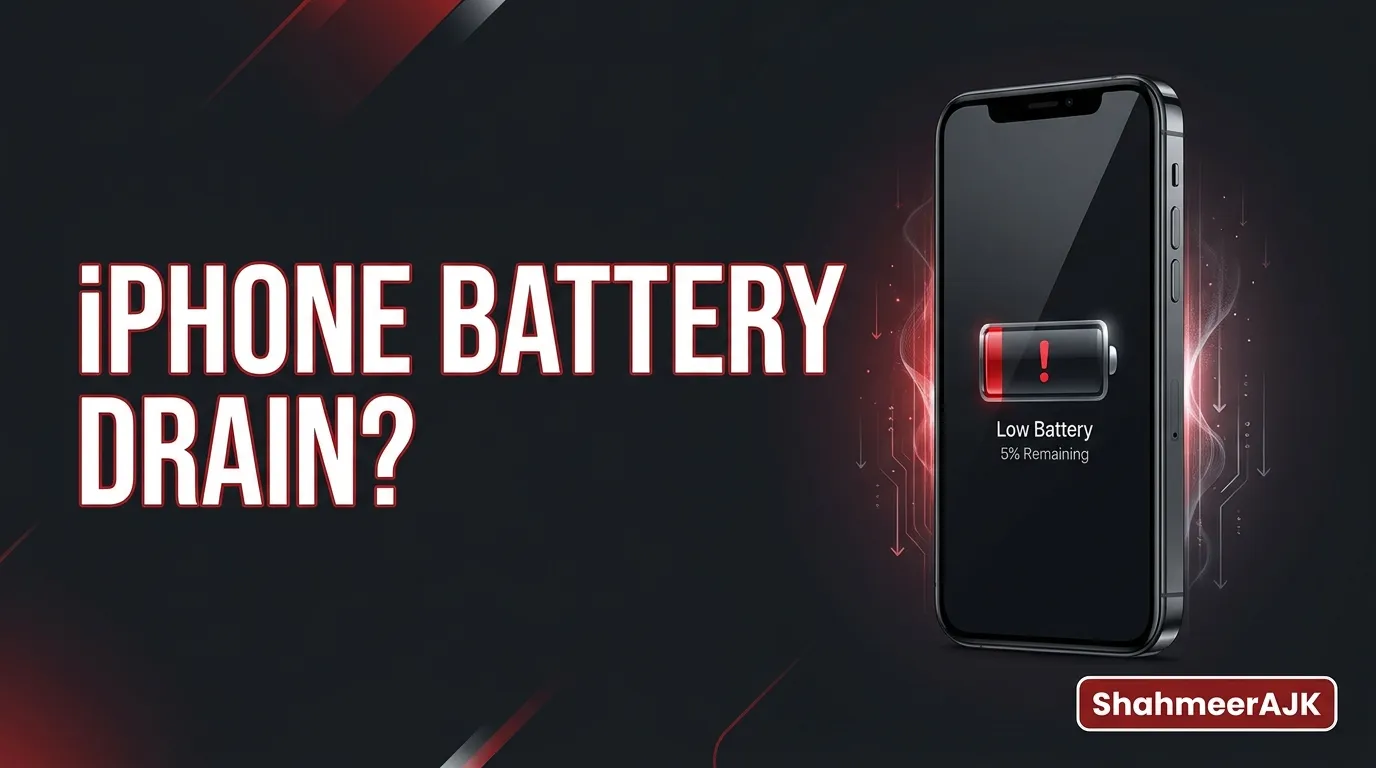
Why Does My iPhone Battery Drain So Fast Even When I'm Not Using It?
If your iPhone battery drains quickly even when you're not using it, background apps, poor network signal, location services, or battery health could be responsible. Sometimes, an iPhone continues running background activities even when the screen is turned off.
The good news is that you can identify the cause without installing additional apps. A few changes to your iPhone settings can often reduce unnecessary battery consumption.
Why Does Your iPhone Battery Drain When Idle?
Your iPhone does not completely stop working when you lock the screen. Some services continue running to keep your device updated and ready to use.
Common causes include:
- Apps refreshing content in the background
- Weak cellular network signals
- Location services running continuously
- Push notifications and email syncing
- High screen brightness and unnecessary settings
- An aging or damaged battery
- Software bugs after an iOS update
Before changing everything, check which apps are actually using the most battery.
1. Check Which Apps Are Draining Your Battery
Your iPhone includes a built-in battery usage report that shows which apps consume the most power.
Follow these steps:
- Open Settings.
- Tap Battery.
- Review the battery usage chart.
- Check the app activity during the last 24 hours or 10 days.
- Look for apps showing unusually high background activity.
Pay attention to the difference between On Screen and Background Activity.
If an app consumes significant power while you are not actively using it, it may be contributing to battery drain.
You do not need to delete every app with high usage. First, check whether its background activity is necessary.
2. Turn Off Background App Refresh
Background App Refresh allows apps to update their content even when you are not using them.
Although this feature is useful, some apps do not need constant background access.
To change it:
- Open Settings.
- Tap General.
- Select Background App Refresh.
- Choose Background App Refresh again.
- Select Wi-Fi or Off, depending on your preference.
You can also disable background refresh for individual apps.
Keep it enabled for apps that genuinely need updated information. Turning it off for unnecessary apps can help reduce background battery usage.
3. Check Location Services
Some apps use your location even when they are not open. Navigation, weather, shopping, and social media apps are common examples.
To review location permissions:
- Open Settings.
- Go to Privacy & Security.
- Tap Location Services.
- Review the apps listed.
- Change unnecessary permissions to While Using the App.
Avoid allowing apps to access your location all the time unless they genuinely need it.
You can also disable Precise Location for apps that only need an approximate location.
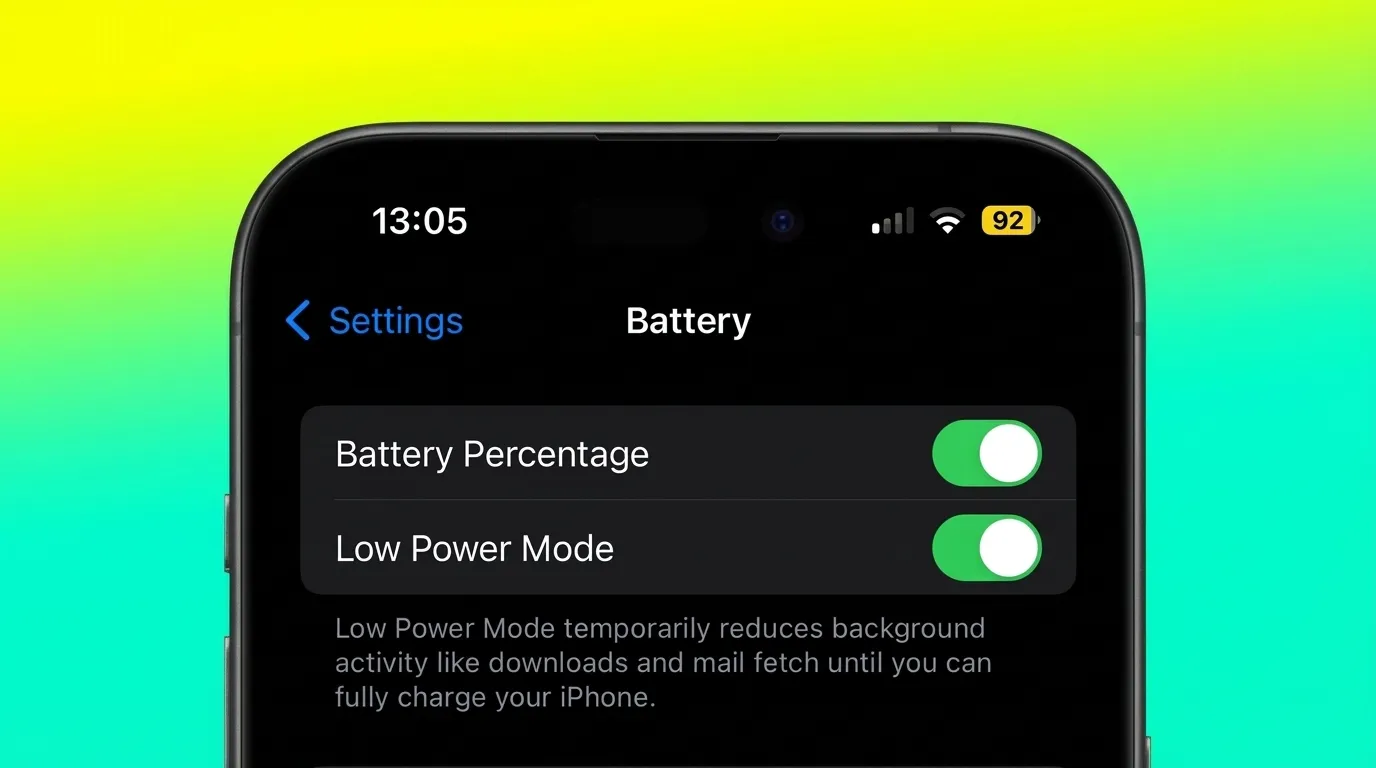
4. Enable Low Power Mode
Low Power Mode reduces background activity and adjusts certain iPhone features to save battery.
To enable it:
- Open Settings.
- Tap Battery.
- Turn on Low Power Mode.
On supported iPhone models, you can also add Low Power Mode to Control Center for quicker access.
This feature can reduce background downloads, email fetching, visual effects, and other activities.
It is particularly useful when your battery is running low or you need your phone to last longer.
5. Check Your Cellular Signal
A weak cellular signal can cause significant battery drain.
When your iPhone struggles to maintain a connection, it may use more power searching for a stable network.
This often happens in:
- Basements and underground parking areas
- Buildings with thick walls
- Rural locations with limited coverage
- Areas with unstable mobile networks
If your signal is consistently weak, try connecting to a reliable Wi-Fi network.
When you are somewhere with no cellular coverage and do not need mobile service, Airplane Mode can also help prevent continuous network searching.
6. Reduce Unnecessary Notifications
Every notification can wake your screen and trigger background activity.
If several apps send frequent alerts, they can contribute to unnecessary battery consumption.
To manage notifications:
- Open Settings.
- Select Notifications.
- Choose an app.
- Turn off Allow Notifications if you do not need its alerts.
Keep notifications enabled for important apps, such as calls, messages, and essential services.
7. Check Your iPhone Battery Health
An older battery may not hold its original charge.
If your iPhone loses power quickly even with minimal activity, check its battery condition.
Follow these steps:
- Open Settings.
- Tap Battery.
- Select Battery Health & Charging.
- Review Maximum Capacity and Peak Performance Capability.
A lower Maximum Capacity means your battery holds less charge than when it was new.
For example, a battery with 80% maximum capacity generally holds significantly less energy than a new battery.
If your battery health is low and you also experience unexpected shutdowns or poor battery life, consider having the battery inspected by Apple or an authorized service provider.
8. Update Your iPhone Software
An iOS bug can sometimes cause unusual battery consumption.
Apple regularly releases software updates that include bug fixes and performance improvements.
To check for updates:
- Open Settings.
- Tap General.
- Select Software Update.
- Install an available update if one is offered.
After updating, give your iPhone some time to finish background activities. Battery usage may temporarily increase while the device completes indexing, syncing, and other maintenance tasks.
9. Restart Your iPhone
Temporary software problems can sometimes cause apps or services to use more battery than necessary.
Restarting your iPhone can help clear these temporary issues.
For most recent iPhone models:
- Press and hold the side button and either volume button.
- Wait for the power-off slider.
- Drag the slider to turn off your iPhone.
- Wait approximately 30 seconds.
- Press and hold the side button until the Apple logo appears.
Once the phone restarts, check whether battery consumption improves.
10. Check Email Fetch and Push Settings
Your iPhone may regularly check for new emails even when you are not using it.
If several email accounts are configured, frequent syncing can contribute to background battery usage.
To review these settings:
- Open Settings.
- Go to Apps and select Mail.
- Find Mail Accounts or Mail settings.
- Review the Fetch New Data options where available.
- Choose a less frequent fetching schedule if you do not need instant updates.
You can also use manual fetching for accounts that do not require immediate notifications.
The exact menu names may vary depending on your iOS version.
11. What to Do If Battery Drain Started After an iOS Update
If your iPhone battery started draining unusually fast immediately after an update, do not assume the battery is damaged.
Your device may still be completing background tasks.
Try these steps:
- Restart your iPhone.
- Check Battery settings for apps with unusual background activity.
- Install any available follow-up iOS update.
- Review Background App Refresh and Location Services.
- Allow 24–48 hours for background optimization when appropriate.
If the problem continues beyond this period, investigate battery health and software-related issues.
When Should You Replace Your iPhone Battery?
If you have tried the recommended solutions and your battery still drains unusually fast, the battery itself may need attention.
Consider professional inspection if:
- Maximum Capacity is significantly reduced.
- Your iPhone shuts down unexpectedly.
- Battery percentage drops rapidly without heavy usage.
- The device becomes unusually hot during normal use.
- iOS displays a battery service recommendation.
If your iPhone battery is swollen, stop using and charging the device and arrange professional service. Do not attempt to open or puncture it.
Frequently Asked Questions
Why does my iPhone lose battery overnight?
Background app activity, weak cellular reception, location services, and battery aging can all contribute to overnight battery drain. Check Settings → Battery to identify unusual activity.
How much battery drain overnight is normal?
There is no single percentage that applies to every iPhone. Battery usage depends on the model, network conditions, battery age, and enabled services. A sudden increase compared with your normal usage deserves investigation.
Does closing apps save iPhone battery?
Not necessarily. iOS manages background apps automatically, so repeatedly force-closing apps is usually unnecessary. Only close an app if it becomes unresponsive or behaves incorrectly.
Does Low Power Mode help when the iPhone is not in use?
Yes. Low Power Mode reduces certain background activities and can help extend battery life, including when your screen is locked.
Can a software update cause battery drain?
Yes. Battery usage may temporarily increase after an update because the iPhone performs background indexing and optimization. Persistent drain may indicate a software bug or another issue.
Should I replace my battery if Maximum Capacity is below 80%?
Battery replacement is worth considering when capacity is around or below 80%, particularly if you notice reduced battery life or performance problems. Have the battery assessed by a qualified service provider.
Final Thoughts
If your iPhone battery drains quickly even when you are not using it, start by checking battery usage and identifying apps running in the background. Then review Location Services, Background App Refresh, notifications, and cellular reception.
If these changes do not help, check Battery Health, install available iOS updates, and restart your device.
Most importantly, identify the actual cause before replacing the battery. A simple settings adjustment may be all your iPhone needs.